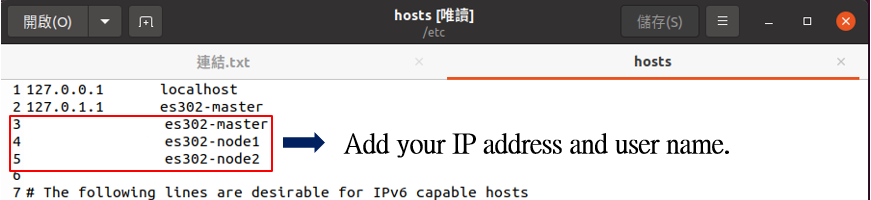
Figure1. Example of specified path.
## Install Docker You can run this command to install docker. ```commandline sudo apt install docker.io -y ``` If you want to let your docker to start automatically when your computer is turned on, you can run the following command. ```commandline sudo systemctl start docker sudo systemctl enable docker ``` ## Disable SWAP Run the following command to disable swap. ```commandline sudo swapon -s sudo swapoff -a ``` ## Install kubeadm, kubelet and kubectl Now start to install the necessary packages for Kubernetes. ```commandline sudo apt-get update sudo apt-get install -y apt-transport-https ca-certificates curl ``` Download the Google Cloud public signing key. ```commandline sudo curl -fsSLo/usr/share/keyrings/kubernetes-archive-keyring.gpghttps://packages.cloud.google.com/apt/doc/apt-key.gpg ``` Add the Kubernetes apt repository. ```commandline echo "deb [signed-by=/usr/share/keyrings/kubernetes-archive-keyring.gpg] https://apt.kubernetes.io/ kubernetes-xenial main" | sudo tee /etc/apt/sources.list.d/kubernetes.list ``` Update packages and install kubeadm, kubelet, kubectl. ```commandline sudo apt-get update sudo apt-get install -y kubelet kubeadm kubectl sudo apt-mark hold kubelet kubeadm kubectl ``` The above commands will automatically install the latest version for you, if you want to install the specified version, run the following commands. ```commandline sudo apt-get install -y kubelet=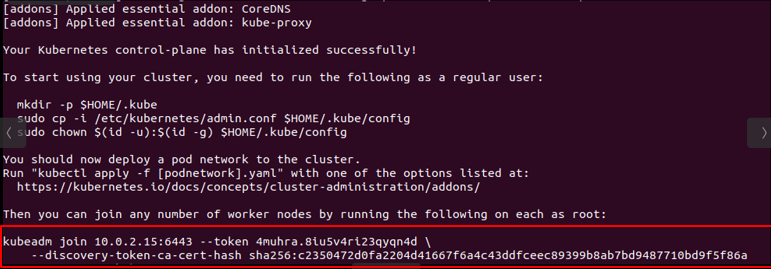
Figure2. Example of deployment master node.
Create .kube folder, this setting is to allow general users to use kubectl. ```commandline mkdir -p $HOME/.kube sudo cp -i /etc/kubernetes/admin.conf $HOME/.kube/config sudo chown $(id -u):$(id -g) $HOME/.kube/config ``` After deploy master node, and then you need to deploy the pod network to the cluster. ```commandline kubectl apply -f https://raw.githubusercontent.com/coreos/flannel/master/Documentation/kube-flannel.yml ``` Finally, use the **Figure.2** redframe's command to join any number of worker nodes by running the following on each as root and your multi nodes cluster will established,as shown in **Figure.3** you can run the following commands to check your multi nodes cluster. ```commandline kubectl get nodes ```
Figure3. Example of cluster.
# Deploy Kubeflow At the first, you need to create the kubeflow folder under the root directory, as shown in **Figure.4**, please make sure the folder where you want to install kubeflow is empty.
Figure4. Example of create kubeflow folder
Download kfctl data into your kubeflow folder, you can go to the [kfctl releases](https://github.com/kubeflow/kfctl/releases) to download kfctl data, shown as **Figure.5**
Figure5. Example of specified path.
And then export your kfctl folder path and Kubeflow YAML data. ```commandline export PATH=$PATH:"