2.0 KiB
| title | description | keywords | redirect_from | |
|---|---|---|---|---|
| Manage access tokens | Learn how to create and manage your personal DTR access tokens to securely integrate DTR with other products. | dtr, security, access tokens |
|
Docker Trusted Registry lets you create and distribute access tokens to enable programmatic access to DTR. Access tokens are linked to a particular user account and duplicate whatever permissions that account has at the time of use. If the account changes permissions, so will the token.
Access tokens are useful in cases such as building integrations since you can issue multiple tokens – one for each integration – and revoke them at any time.
Create an access token
-
To create an access token for the first time, log in to
https://<dtr-url>with your UCP credentials. -
Expand your Profile from the left navigation pane and select Profile > Access Tokens.
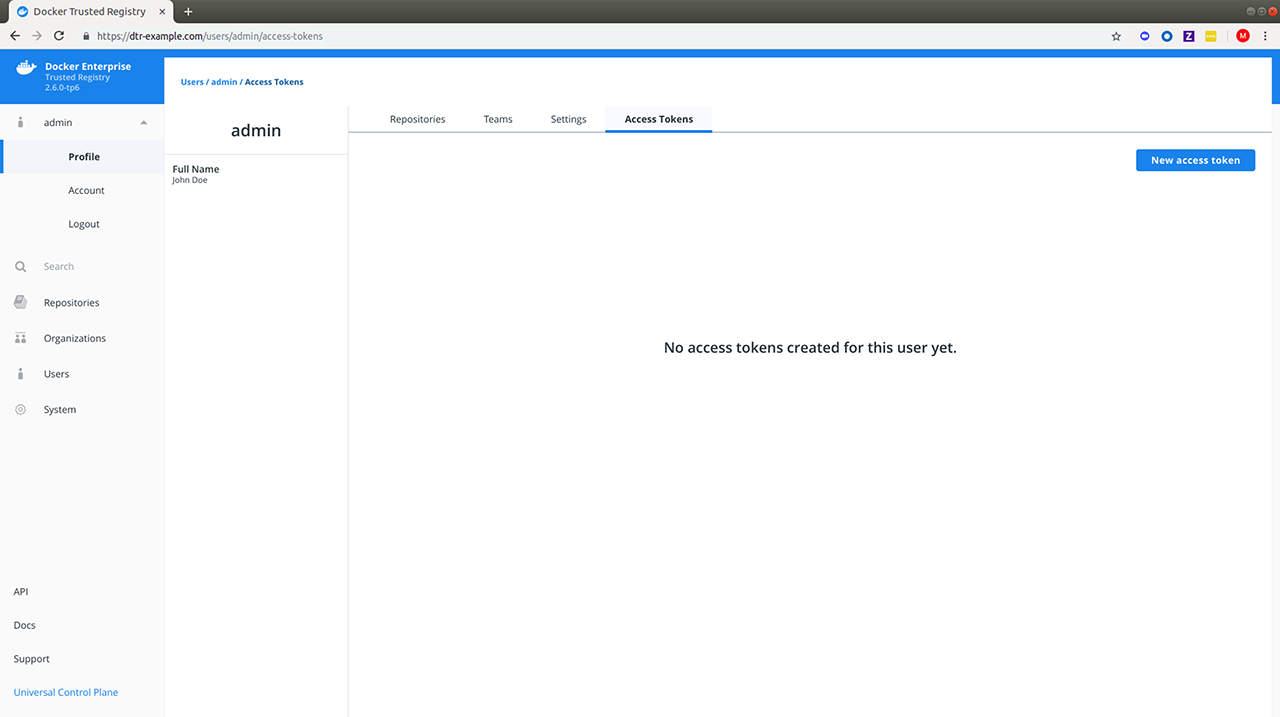 {: .with-border}
 -
Add a description for your token. Use something that indicates where the token is going to be used, or set a purpose for the token. Administrators can also create tokens for other users.
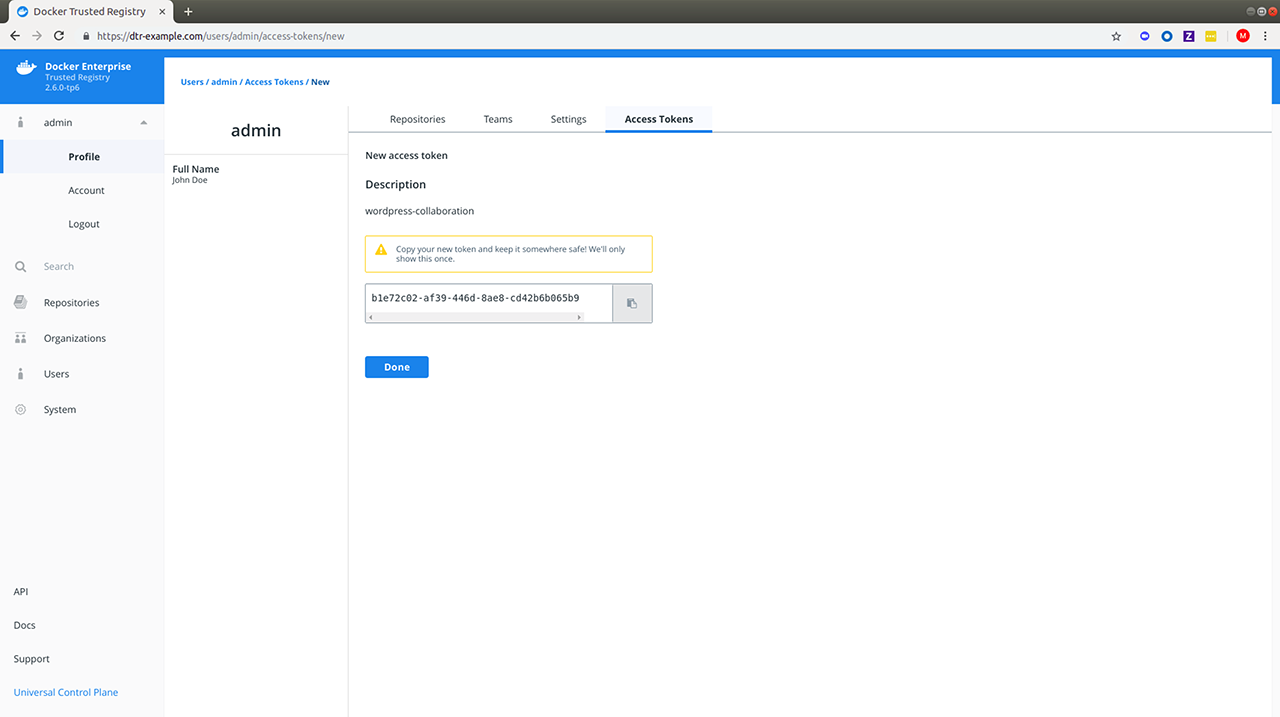 {: .with-border}
Modify an access token
Once the token is created, you will not be able to see it again. You do have the option to rename, deactivate, or delete the token as needed. You can delete the token by selecting it and clicking Delete, or you can click View Details:
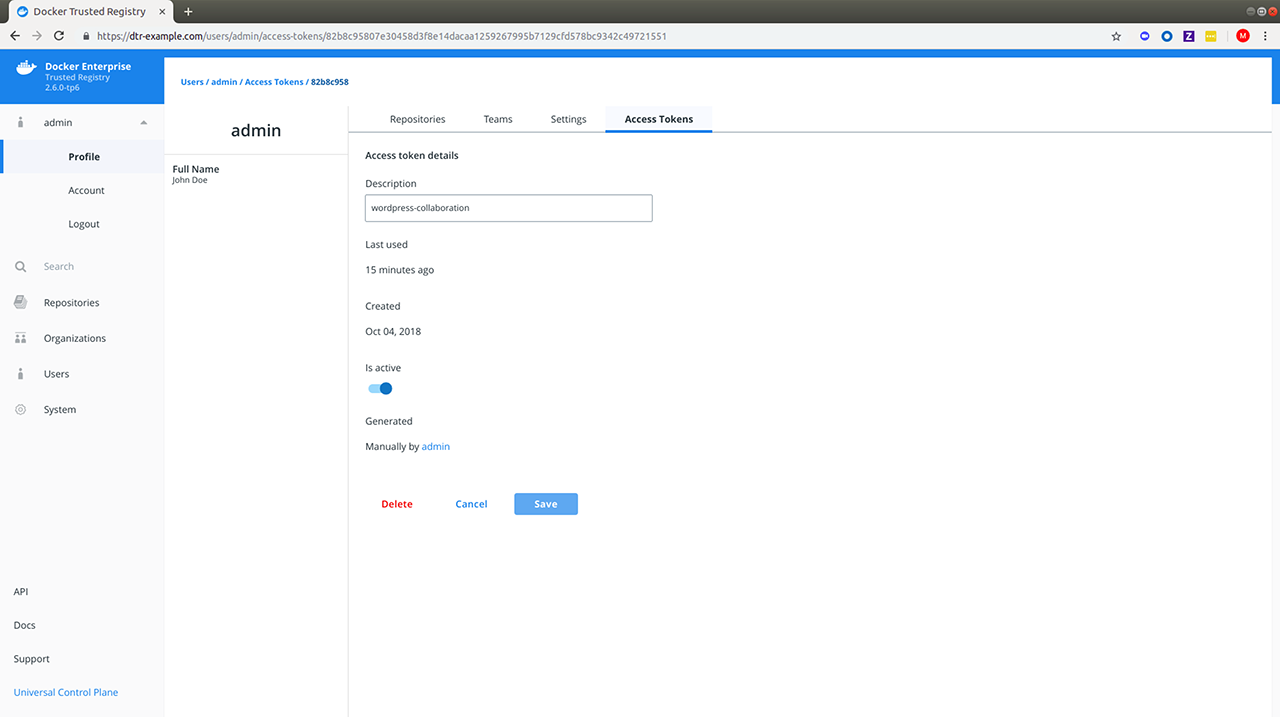 {: .with-border}
Use the access token
You can use an access token anywhere that requires your DTR password.
As an example you can pass your access token to the --password or -p option when logging in from your Docker CLI client:
docker login dtr.example.org --username <username> --password <token>
To use the DTR API to list the repositories your user has access to:
curl --silent --insecure --user <username>:<token> dtr.example.org/api/v0/repositories