3.6 KiB
| title | description | keywords |
|---|---|---|
| Use hostnames to access your service | Learn how to configure your services to make them accessible using a hostname instead of IP addresses and ports. | ucp, services, http, dns |
When you deploy a service with an HTTP or HTTPS endpoint, you can make it accessible to users by mapping the service port to the swarm routing mesh port. This makes your service available using the IP address of any node in the cluster.

UCP takes this one step further and allows you to configure your HTTP or HTTPS services to make them available using hostnames while sharing the same port. This simplifies configuration, with each service specifies the hostname or hostnames that it handles, giving your team fewer places to configure common options for routing.
In this example we're going to deploy an NGINX service and make it available
with the hostname app.ucp.example.com. This guide uses the UCP web UI. The
same functionality is provided via the Docker CLI and API using
labels.
Configuring a service for the HTTP routing mesh using the UCP web UI
Start by making sure that the
HTTP routing mesh service is enabled,
you have access to the ucp-hrm network, and that DNS records are configured.
If you don't have administrator credentials, ask your system administrator to
enable the HTTP routing mesh, and grant you access to the ucp-hrm network.
Log in the UCP web UI, navigate to the Services page, and click Create a service. Then create an NGINX service with the following configurations:
| Field | Value |
|---|---|
| Service name | nginx |
| Image name | nginx |
| Internal port | 80 |
| Protocol | tcp |
| Publish Mode | ingress |
| Public port | 8000 |
| External scheme | http:// |
| Routing mesh host | app.ucp.example.com |
When creating the service, make sure to publish both internal and public ports. This maps the port 80 on the container running the service, to port 8000 on the ingress routing mesh.
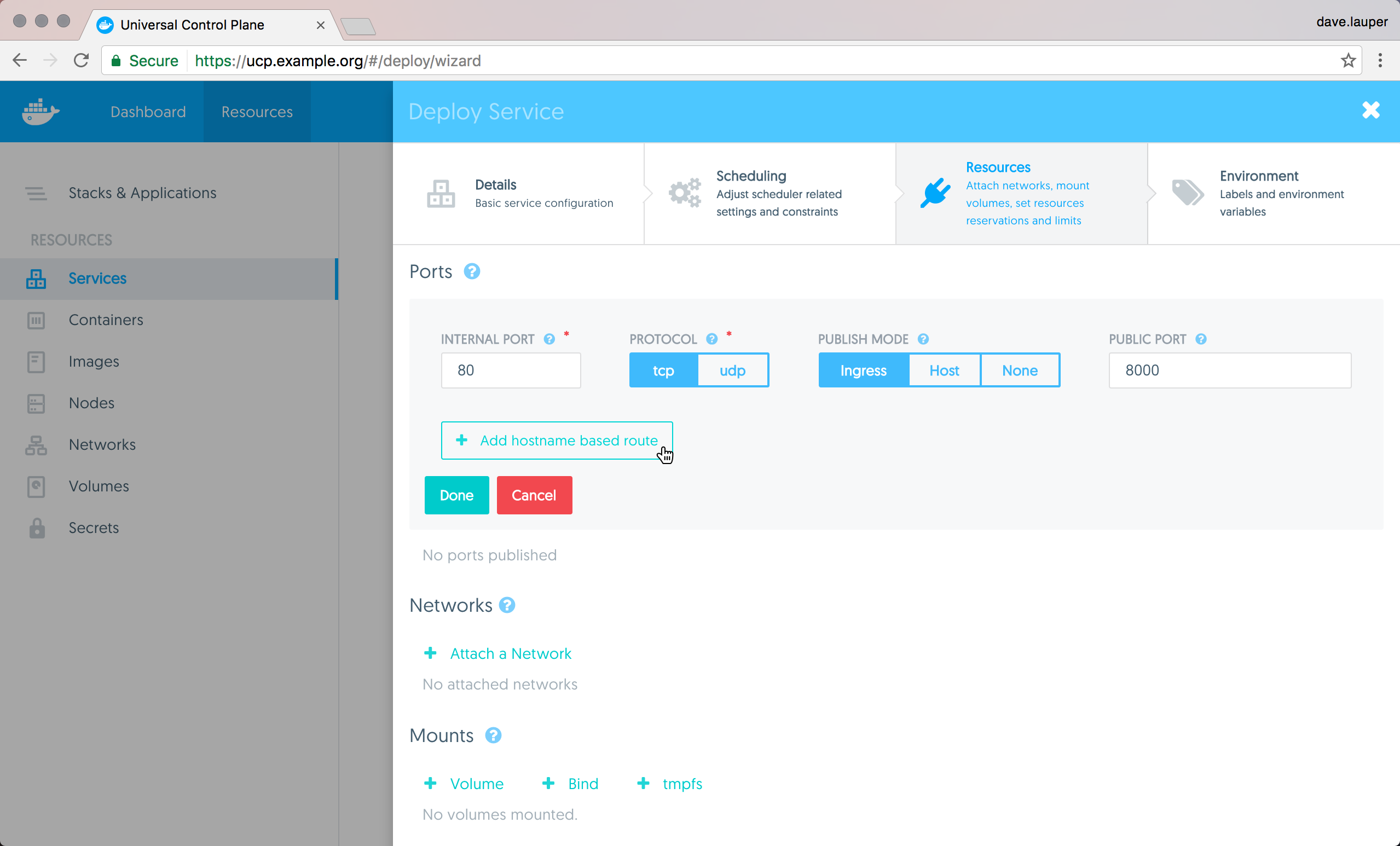 {: .with-border}
Then click the Add hostname based route to set the hostname that will resolve to the service.
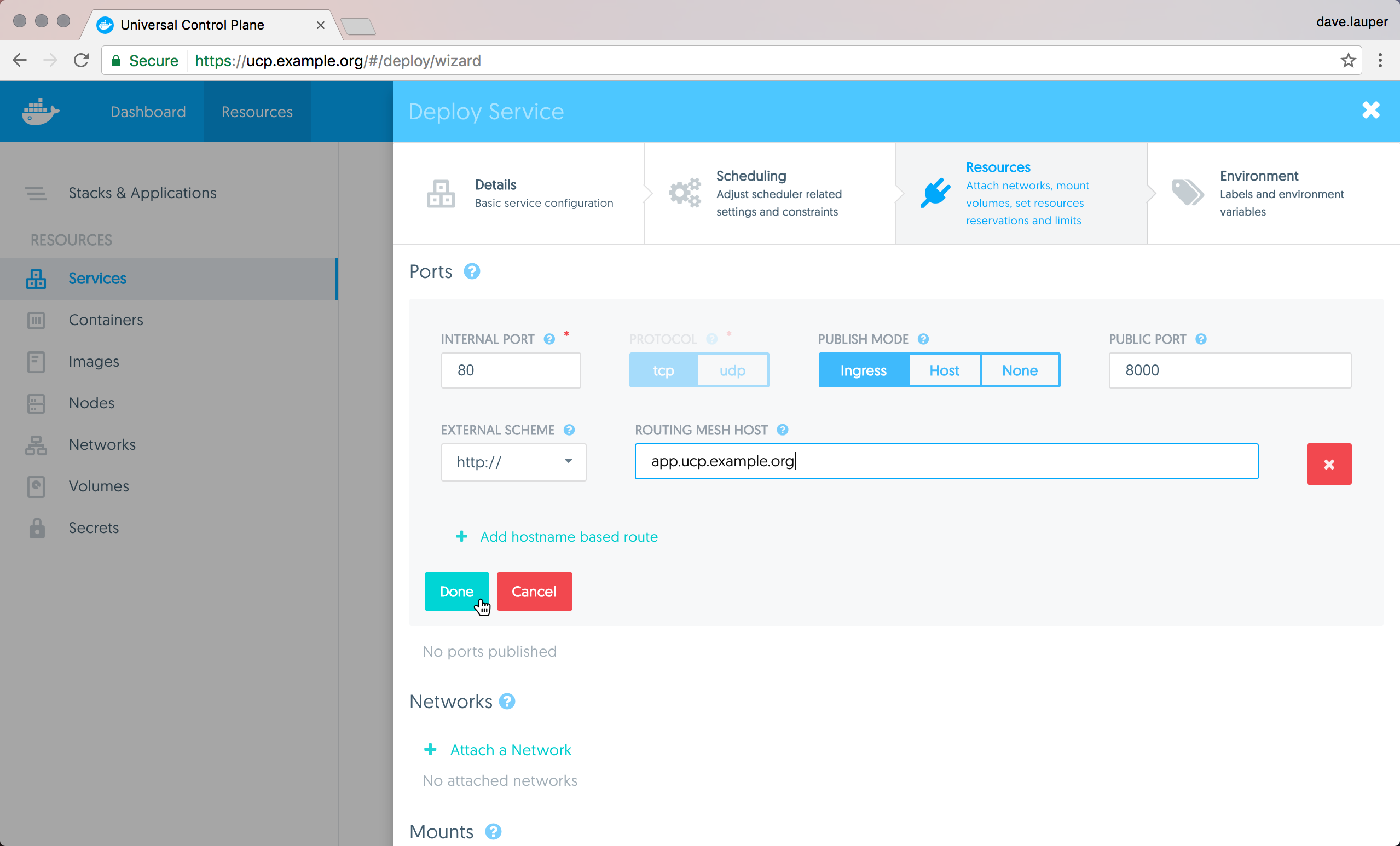 {: .with-border}
Finally, you need to connect the service to the ucp-hrm network. This is
what ensures traffic send to the HTTP routing mesh is redirected to your
service.
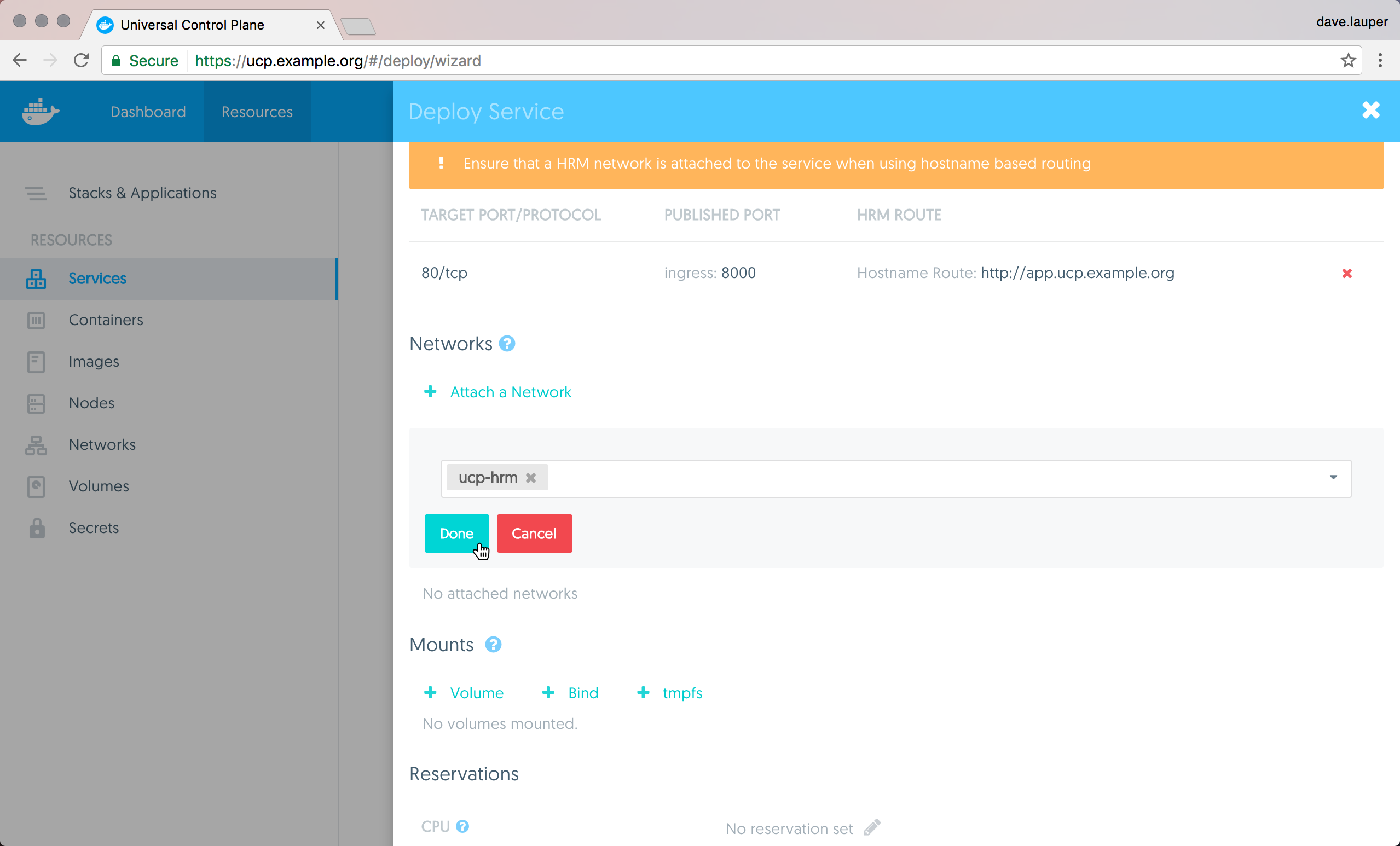 {: .with-border}
Click Deploy now to deploy your service. Once the service is deployed,
the HTTP routing mesh service is reconfigured to redirect HTTP requests with
the hostname set to app.ucp.example.com, to the NGINX service.
To make this service accessible to users, you need to add an entry to your DNS,
mapping the name app.ucp.example.com to the IP address of any node in the
UCP cluster. When testing locally, you can also change your /etc/hosts file to
create this mapping, instead of using a DNS service.
Now when you access http://app.ucp.example.com from your browser, you'll see
the default NGINX page.
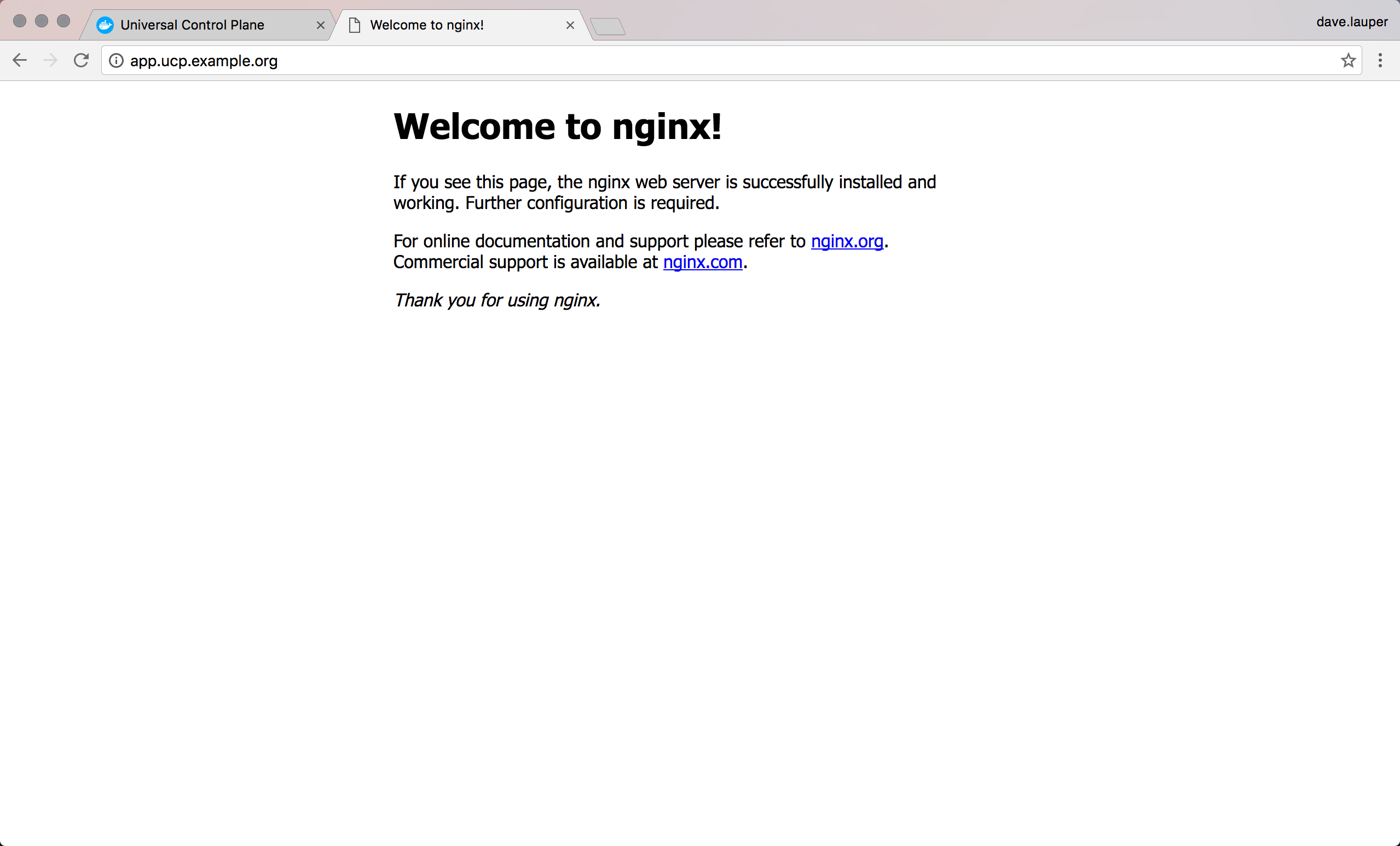 {: .with-border}
Next Steps
Once you have configured the HTTP routing mesh with a simple service, you may want to explore other configuration options, including configuration using the Docker CLI or advanced options.