2.5 KiB
| title | description | keywords | |
|---|---|---|---|
| Deploy an app from the CLI | Learn how to deploy containerized applications on a swarm, with Docker Universal Control Plane. |
|
With Docker Universal Control Plane you can deploy your apps from the CLI, using Docker Compose. In this example we're going to deploy a WordPress application.
Get a client certificate bundle
Docker UCP secures your Docker swarm with role-based access control, so that only authorized users can deploy applications. To be able to run Docker commands on a swarm managed by UCP, you need to authenticate your requests using client certificates.
Learn how to set your CLI to use client certificates.
Deploy WordPress
The WordPress application we're going to deploy is composed of two services:
- wordpress: The service that runs Apache, PHP, and WordPress.
- db: A MariaDB database used for data persistence.
After setting up your terminal to authenticate using client certificates,
create a file named docker-compose.yml with the following service definition:
version: '2'

services:
   db:
     image: mysql:5.7
     volumes:
       - db_data:/var/lib/mysql
     restart: always
     environment:
       MYSQL_ROOT_PASSWORD: wordpress
       MYSQL_DATABASE: wordpress
       MYSQL_USER: wordpress
       MYSQL_PASSWORD: wordpress

   wordpress:
     depends_on:
       - db
     image: wordpress:latest
     ports:
       - "8000:80"
     restart: always
     environment:
       WORDPRESS_DB_HOST: db:3306
       WORDPRESS_DB_PASSWORD: wordpress
volumes:
    db_data:
In your command line, navigate to the place where you've created the
docker-compose.yml file and run:
$ docker-compose --project-name wordpress up -d
Test that the WordPress service is up and running, and find where you can reach it.
$ docker-compose --project-name wordpress ps

Name                       Command               State             Ports
------------------------------------------------------------------------------------------
wordpress_db_1          docker-entrypoint.sh mysqld      Up      3306/tcp
wordpress_wordpress_1   docker-entrypoint.sh apach ...   Up      172.31.18.153:8000->80/tcp
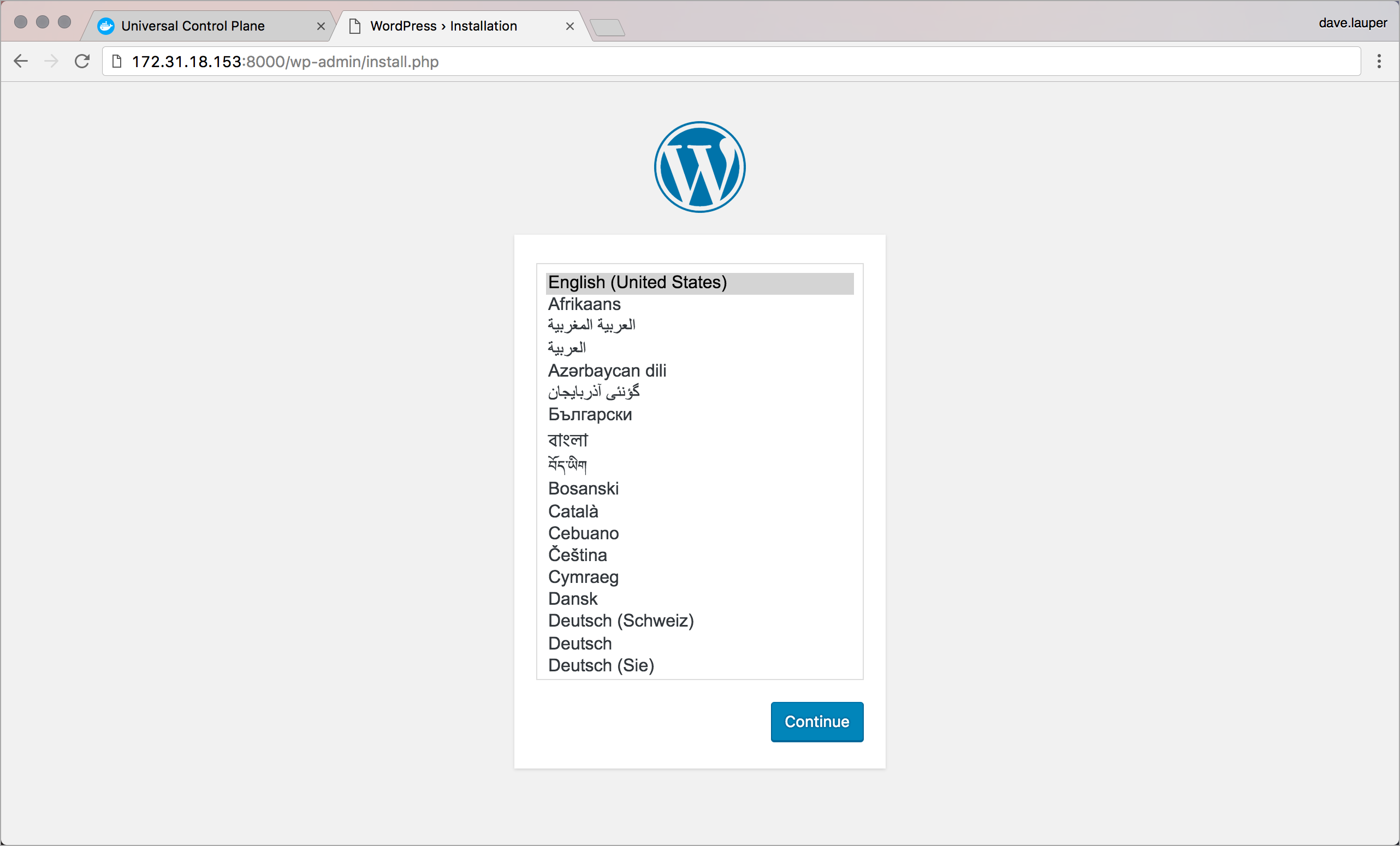
In this example, WordPress can be accessed at 172.31.18.153:8000. Navigate to this address in your browser, to start using the WordPress app you just deployed.