6.7 KiB
Quick start on exporting metrics to Prometheus/Grafana
Prerequisite
It is highly recommended to go over the getting-started doc before following along this document.
Introduction
Configure OpenTelemetry to Expose metrics via Prometheus Endpoint
Create a new console application and run it:
dotnet new console --output prometheus-http-server
cd prometheus-http-server
dotnet run
Add a reference to prometheus exporter to this application.
dotnet add package OpenTelemetry.Exporter.Prometheus --version 1.2.0-rc1
Now, we are going to make some small tweaks to the example in the
getting-started metrics Program.cs to make the metrics available via
OpenTelemetry Prometheus Exporter.
First, copy and paste everything from getting-started metrics example to the Program.cs file of the new console application (prometheus-http-server) we've created.
And replace the below line:
.AddConsoleExporter()
with
.AddPrometheusExporter(opt =>
{
    opt.StartHttpListener = true;
    opt.HttpListenerPrefixes = new string[] { $"http://localhost:9184/" };
})
With .AddPrometheusExporter() function, OpenTelemetry PrometheusExporter will
export data via the endpoint defined by HttpListenerPrefixes.
Also, for our learning purpose, use a while-loop to keep increasing the counter value until any key is pressed.
Console.WriteLine("Press any key to exit");
while (!Console.KeyAvailable)
{
    Thread.Sleep(1000);
    MyFruitCounter.Add(1, new("name", "apple"), new("color", "red"));
    MyFruitCounter.Add(2, new("name", "lemon"), new("color", "yellow"));
    MyFruitCounter.Add(1, new("name", "lemon"), new("color", "yellow"));
    ...
    ...
    ...
}
After the above modifications, now our Program.cs should look like this.
Check Results in the browser
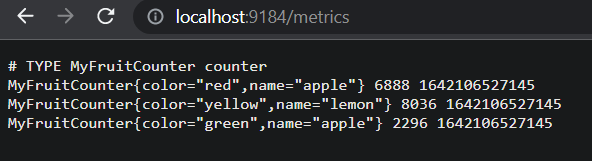
Start the application and leave the process running. Now we should be able to
see the metrics at the endpoint we've defined in Program.cs; in this case, the
endpoint is: "http://localhost:9184/".
Check the output metrics with your favorite browser:
Now, we understand how we can configure Opentelemetry PrometheusExporter to
export metrics the endpoint we specified. Next, we are going to learn about how
to use Prometheus and Grafana to view/query the metrics
visualization.
Download Prometheus
Follow the first steps to download the latest release of Prometheus.
Prometheus and Grafana
Configuration
After finished downloading, extract it to a local location that's easy to
access. We will find the default Prometheus configuration YAML file in the
folder, named prometheus.yml.
Let's create a new file in the same location as where prometheus.yml locates,
and named the new file as otel.yml for this exercise. Then, copy and paste the
entire content below into the otel.yml file we have created just now.
global:
  scrape_interval: 10s
  scrape_timeout: 10s
  evaluation_interval: 10s
scrape_configs:
- job_name: MyOpenTelemetryDemo
  honor_timestamps: true
  scrape_interval: 1s
  scrape_timeout: 1s
  metrics_path: /metrics
  scheme: http
  follow_redirects: true
  static_configs:
  - targets:
  # set the target to the location where metrics will be exposed by
  # the OpenTelemetry Prometheus Exporter
    - localhost:9184
Start Prometheus
Follow the instructions from starting-prometheus to start the Prometheus server and verify it has been started successfully.
Please note that we will need pass in otel.yml file as the argument:
./prometheus --config.file=otel.yml
View Results in Prometheus
To use the graphical interface for viewing our metrics with Prometheus, navigate
to "http://localhost:9090/graph", and type MyFruitCounter in the expression
bar of the UI; finally, click the execute button.
We should be able to see the following chart from the browser:
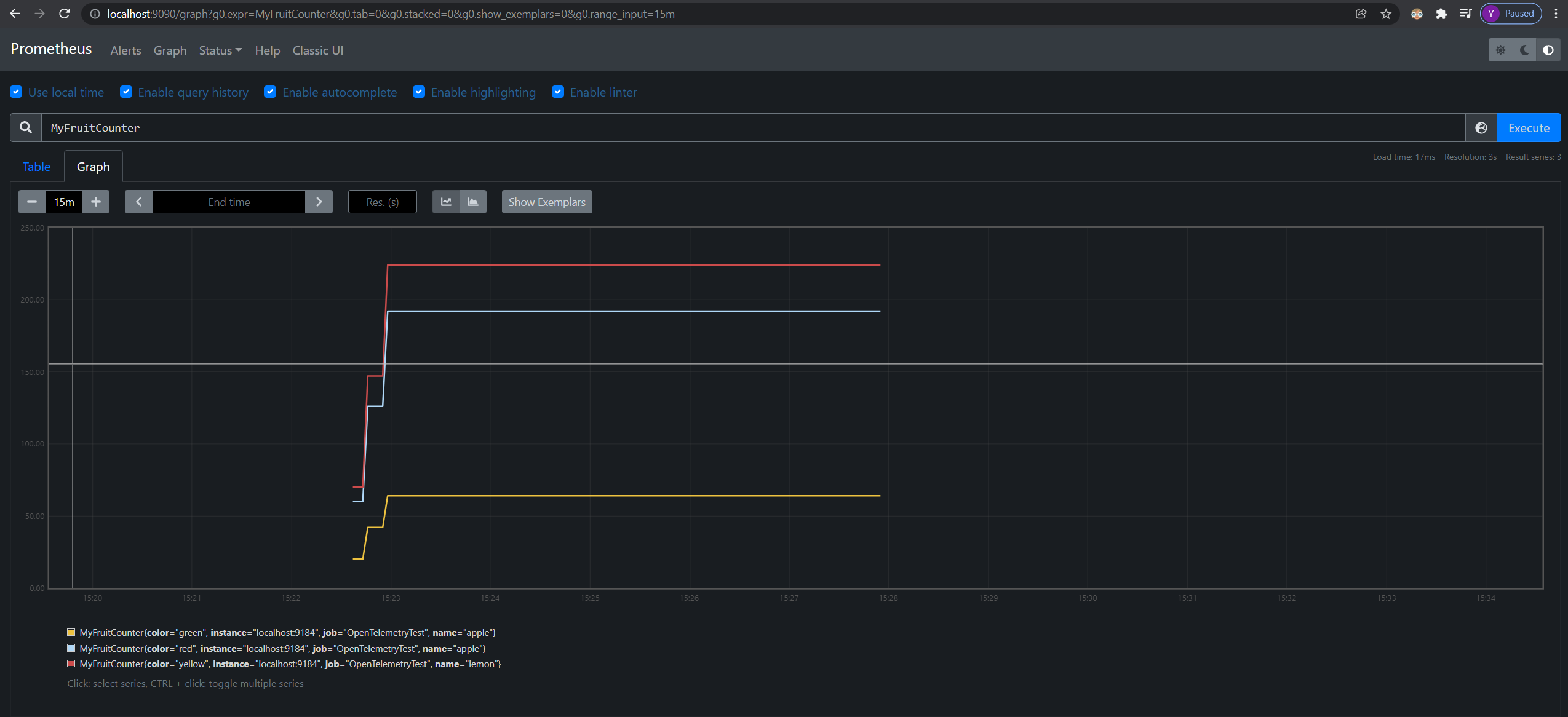
From the legend, we can see that the instance name and the job name are the
values we have set in otel.yml.
Congratulations!
Now we know how to configure Prometheus server and deploy OpenTelemetry
PrometheusExporter to export our metrics. Next, we are going to explore a tool
called Grafana, which has powerful visualizations for the metrics.
View/Query Results with Grafana
Please Install Grafana.
For windows users, after finishing installation, start the standalone Grafana
server, grafana-server.exe located in the bin folder. Then, use the browser to
navigate to the default port of Grafana 3000. We can confirm the port number
with the logs from the command line after starting the Grafana server as well.
Follow the instructions in the Grafana getting started doc to log in.
After successfully logging in, click on the explore option on the left panel of the website - we should be able to write some queries to explore our metrics now!
Feel free to find some handy PromQL here.
In the below example, the query targets to find out what is the per-second rate of increace of myFruitCounter over the last 30 minutes: